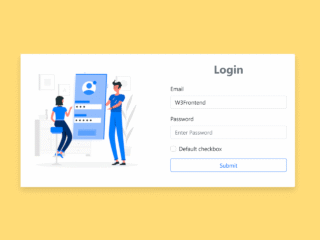
If you need to create a modern and visually appealing user interface for user authentication, a Login Page with Image One Side in Tailwind CSS offers a great solution. This design pattern enhances user experience by providing a clean layout with an engaging visual element. This tutorial will guide you through building such a login page, making it responsive and easy to implement using Tailwind CSS.
How to Create a Login Page with Image on One Side in Tailwind CSS
Include Tailwind CSS in Your Project
First, you need to add the Tailwind CSS stylesheet to your HTML document. Place the following CDN link inside the `<head>` tag of your HTML file. This will give you access to all Tailwind utility classes.
<link rel='stylesheet' href='https://cdnjs.cloudflare.com/ajax/libs/tailwindcss/1.1.2/tailwind.min.css'>
Build the HTML Structure
Next, create the main structure for your login page. This HTML code sets up a flexible container. It divides the screen into two main parts: one for the image and one for the login form. Tailwind CSS classes handle the responsiveness, making the image visible on larger screens and the form adjust accordingly.
<section class="flex flex-col md:flex-row h-screen items-center">
<div class="bg-blue-600 hidden lg:block w-full md:w-1/2 xl:w-2/3 h-screen">
<img src="https://images.unsplash.com/photo-1444313431167-e7921088a9d3?ixlib=rb-1.2.1&ixid=eyJhcHBfaWQiOjEyMDd9&auto=format&fit=crop&w=1441&q=100" alt="" class="w-full h-full object-cover">
</div>
<div class="bg-white w-full md:max-w-md lg:max-w-full md:mx-auto md:mx-0 md:w-1/2 xl:w-1/3 h-screen px-6 lg:px-16 xl:px-12
flex items-center justify-center">
<div class="w-full h-100">
<h1 class="text-xl font-bold">Abstract UI</h1>
<h1 class="text-xl md:text-2xl font-bold leading-tight mt-12">Log in to your account</h1>
<form class="mt-6" action="#" method="POST">
<div>
<label class="block text-gray-700">Email Address</label>
<input type="email" name="" id="" placeholder="Enter Email Address" class="w-full px-4 py-3 rounded-lg bg-gray-200 mt-2 border focus:border-blue-500 focus:bg-white focus:outline-none" autofocus autocomplete required>
</div>
<div class="mt-4">
<label class="block text-gray-700">Password</label>
<input type="password" name="" id="" placeholder="Enter Password" minlength="6" class="w-full px-4 py-3 rounded-lg bg-gray-200 mt-2 border focus:border-blue-500
focus:bg-white focus:outline-none" required>
</div>
<div class="text-right mt-2">
<a href="#" class="text-sm font-semibold text-gray-700 hover:text-blue-700 focus:text-blue-700">Forgot Password?</a>
</div>
<button type="submit" class="w-full block bg-blue-500 hover:bg-blue-400 focus:bg-blue-400 text-white font-semibold rounded-lg
px-4 py-3 mt-6">Log In</button>
</form>
<hr class="my-6 border-gray-300 w-full">
<button type="button" class="w-full block bg-white hover:bg-gray-100 focus:bg-gray-100 text-gray-900 font-semibold rounded-lg px-4 py-3 border border-gray-300">
<div class="flex items-center justify-center">
<svg xmlns="http://www.w3.org/2000/svg" xmlns:xlink="http://www.w3.org/1999/xlink" class="w-6 h-6" viewBox="0 0 48 48"><defs><path id="a" d="M44.5 20H24v8.5h11.8C34.7 33.9 30.1 37 24 37c-7.2 0-13-5.8-13-13s5.8-13 13-13c3.1 0 5.9 1.1 8.1 2.9l6.4-6.4C34.6 4.1 29.6 2 24 2 11.8 2 2 11.8 2 24s9.8 22 22 22c11 0 21-8 21-22 0-1.3-.2-2.7-.5-4z"/></defs><clipPath id="b"><use xlink:href="#a" overflow="visible"/></clipPath><path clip-path="url(#b)" fill="#FBBC05" d="M0 37V11l17 13z"/><path clip-path="url(#b)" fill="#EA4335" d="M0 11l17 13 7-6.1L48 14V0H0z"/><path clip-path="url(#b)" fill="#34A853" d="M0 37l30-23 7.9 1L48 0v48H0z"/><path clip-path="url(#b)" fill="#4285F4" d="M48 48L17 24l-4-3 35-10z"/></svg>
<span class="ml-4">
Log in
with
Google</span>
</div>
</button>
<p class="mt-8">Need an account? <a href="#" class="text-blue-500 hover:text-blue-700 font-semibold">Create an
account</a></p>
<p class="text-sm text-gray-500 mt-12">© 2020 Abstract UI - All Rights Reserved.</p>
</div>
</div>
</section>
You have now successfully created a Login Page on your website.