Here’s a tutorial to guide you through creating a dynamic and interactive Bootstrap 5 Calendar With Events. This calendar will not only display dates but also allow users to add, edit, and delete events, with data stored locally for persistence. Let’s dive in and build your own event calendar!
Add Header Assets
Include the necessary CSS stylesheets in the section of your HTML. These links will import Bootstrap 5 for styling, Font Awesome for icons, and FullCalendar’s core and daygrid plugins for calendar functionality.
<link rel='stylesheet' href='https://cdn.jsdelivr.net/npm/bootstrap@5.3.0-alpha3/dist/css/bootstrap.min.css'>
<link rel='stylesheet' href='https://cdnjs.cloudflare.com/ajax/libs/font-awesome/5.15.4/css/all.min.css'>
<link rel='stylesheet' href='https://cdn.jsdelivr.net/npm/@fullcalendar/core@4.2.0/main.min.css'>
<link rel='stylesheet' href='https://cdn.jsdelivr.net/npm/@fullcalendar/daygrid@4.3.0/main.min.css'>
Create the HTML Structure
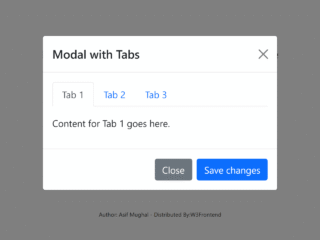
Construct the main HTML structure for the calendar and modal. This includes the main `div` element where the calendar will be rendered, along with Bootstrap modals for adding, editing, and deleting events. The modal contains form fields for event details such as title, start date, end date, and color.
   <div id='calendar'></div>

    <!-- Add modal -->

    <div class="modal fade edit-form" id="form" tabindex="-1" aria-labelledby="exampleModalLabel" aria-hidden="true">
        <div class="modal-dialog modal-dialog" role="document">
            <div class="modal-content">
                <div class="modal-header border-bottom-0">
                    <h5 class="modal-title" id="modal-title">Add Event</h5>
                    <button type="button" class="btn-close" data-bs-dismiss="modal" aria-label="Close"></button>
                </div>
                <form id="myForm">
                    <div class="modal-body">
                        <div class="alert alert-danger " role="alert" id="danger-alert" style="display: none;">
                            End date should be greater than start date.
                          </div>
                        <div class="form-group">
                            <label for="event-title">Event name <span class="text-danger">*</span></label>
                            <input type="text" class="form-control" id="event-title" placeholder="Enter event name" required>
                        </div>
                        <div class="form-group">
                            <label for="start-date">Start date <span class="text-danger">*</span></label>
                            <input type="date" class="form-control" id="start-date" placeholder="start-date" required>
                        </div>
                        <div class="form-group">
                            <label for="end-date">End date - <small class="text-muted">Optional</small></label>
                            <input type="date" class="form-control" id="end-date" placeholder="end-date">
                        </div>
                        <div class="form-group">
                            <label for="event-color">Color</label>
                            <input type="color" class="form-control" id="event-color" value="#3788d8">
                          </div>
                    </div>
                    <div class="modal-footer border-top-0 d-flex justify-content-center">
                        <button type="submit" class="btn btn-success" id="submit-button">Submit</button>
                      </div>
                </form>
            </div>
        </div>
    </div>

    <!-- Delete Modal -->
    <div class="modal fade" id="delete-modal" tabindex="-1" role="dialog" aria-labelledby="delete-modal-title" aria-hidden="true">
        <div class="modal-dialog modal-dialog" role="document">
          <div class="modal-content">
            <div class="modal-header">
              <h5 class="modal-title" id="delete-modal-title">Confirm Deletion</h5>
              <button type="button" class="btn-close" data-bs-dismiss="modal" aria-label="Close"></button>
            </div>
            <div class="modal-body text-center" id="delete-modal-body">
              Are you sure you want to delete the event?
            </div>
            <div class="modal-footer border-0">
                <button type="button" class="btn btn-secondary rounded-sm" data-dismiss="modal" id="cancel-button">Cancel</button>
              <button type="button" class="btn btn-danger rounded-lg" id="delete-button">Delete</button>
            </div>
          </div>
        </div>
      </div>
Style with CSS
Apply custom CSS styles to enhance the calendar’s appearance and functionality. This includes styling for the calendar itself, event display, custom buttons, form elements, and the context menu for event actions. This CSS provides a visually appealing and user-friendly interface for the calendar and its associated components.
@import url('https://fonts.googleapis.com/css2?family=Montserrat:wght@300;400;500;600;700&display=swap');

body {
    font-family: "Montserrat", sans-serif;
    overflow: hidden;
}

#calendar {
    max-width: 800px;
    margin: 40px auto;

}

.fc-event {
    border: 1px solid #eee !important;
}

.fc-content {
    padding: 3px !important;
}

.fc-content .fc-title {
    display: block !important;
    overflow: hidden;
    text-align: center;
    font-size: 12px;
    font-weight: 500;
    text-align: center;
}

.fc-customButton-button {
    font-size: 13px !important;
    position: absolute;
    top: 60px;
    left: 50%;
    transform: translateY(-50%);
}


.form-group {
    margin-bottom: 1rem;
}

.form-group>label {
    margin-bottom: 10px;
}

#delete-modal .modal-footer > .btn {

    border-radius: 3px !important;
    padding: 0px 8px !important;
    font-size: 15px;

 }


.fc-scroller {
    overflow-y: hidden !important;
}

.context-menu {
    position: absolute;
    z-index: 1000;
    background-color: #fff;
    border: 1px solid #ccc;
    border-radius: 4px;
    box-shadow: 2px 2px 6px rgba(0, 0, 0, 0.3);
    padding: 5px;
}

/* .context-menu.show {
    display: block;
  } */

.context-menu ul {
    list-style-type: none;
    margin: 0;
    padding: 0;

}

.context-menu ul>li {
    display: block;
    ;
    padding: 5px 15px;
    list-style-type: none;
    color: #333;
    display: block;
    cursor: pointer;
    margin: 0 auto;
    transition: 0.10s;
    font-size: 13px;


}

.context-menu ul>li:hover {
    color: #fff;
    background-color: #007bff;
    border-radius: 2px;

}

.fa,
.fas {
    font-size: 13px;
    margin-right: 4px;
}
Implement JavaScript Functionality
Implement the JavaScript to initialize the calendar, handle event interactions, and manage data persistence using local storage. This script initializes the FullCalendar library, sets up event listeners for adding, editing, and deleting events, and handles form submissions. It also includes logic for displaying a context menu on event clicks, allowing users to edit or delete events. Data is stored in local storage to persist across sessions.
document.addEventListener("DOMContentLoaded", function () {
  const calendarEl = document.getElementById("calendar");
  const myModal = new bootstrap.Modal(document.getElementById("form"));
  const dangerAlert = document.getElementById("danger-alert");
  const close = document.querySelector(".btn-close");

  const myEvents = JSON.parse(localStorage.getItem("events")) || [
    {
      id: uuidv4(),
      title: `Edit Me`,
      start: "2023-04-11",
      backgroundColor: "red",
      allDay: false,
      editable: false
    },
    {
      id: uuidv4(),
      title: `Delete me`,
      start: "2023-04-17",
      end: "2023-04-21",

      allDay: false,
      editable: false
    }
  ];

  const calendar = new FullCalendar.Calendar(calendarEl, {
    customButtons: {
      customButton: {
        text: "Add Event",
        click: function () {
          myModal.show();
          const modalTitle = document.getElementById("modal-title");
          const submitButton = document.getElementById("submit-button");
          modalTitle.innerHTML = "Add Event";
          submitButton.innerHTML = "Add Event";
          submitButton.classList.remove("btn-primary");
          submitButton.classList.add("btn-success");

          close.addEventListener("click", () => {
            myModal.hide();
          });
        }
      }
    },
    header: {
      center: "customButton", // add your custom button here
      right: "today, prev,next "
    },
    plugins: ["dayGrid", "interaction"],
    allDay: false,
    editable: true,
    selectable: true,
    unselectAuto: false,
    displayEventTime: false,
    events: myEvents,
    eventRender: function (info) {
      info.el.addEventListener("contextmenu", function (e) {
        e.preventDefault();
        let existingMenu = document.querySelector(".context-menu");
        existingMenu && existingMenu.remove();
        let menu = document.createElement("div");
        menu.className = "context-menu";
        menu.innerHTML = `<ul>
        <li><i class="fas fa-edit"></i>Edit</li>
        <li><i class="fas fa-trash-alt"></i>Delete</li>
        </ul>`;

        const eventIndex = myEvents.findIndex(
          (event) => event.id === info.event.id
        );

        document.body.appendChild(menu);
        menu.style.top = e.pageY + "px";
        menu.style.left = e.pageX + "px";

        // Edit context menu

        menu
          .querySelector("li:first-child")
          .addEventListener("click", function () {
            menu.remove();

            const editModal = new bootstrap.Modal(
              document.getElementById("form")
            );
            const modalTitle = document.getElementById("modal-title");
            const titleInput = document.getElementById("event-title");
            const startDateInput = document.getElementById("start-date");
            const endDateInput = document.getElementById("end-date");
            const colorInput = document.getElementById("event-color");
            const submitButton = document.getElementById("submit-button");
            const cancelButton = document.getElementById("cancel-button");
            modalTitle.innerHTML = "Edit Event";
            titleInput.value = info.event.title;
            startDateInput.value = moment(info.event.start).format(
              "YYYY-MM-DD"
            );
            endDateInput.value = moment(info.event.end, "YYYY-MM-DD")
              .subtract(1, "day")
              .format("YYYY-MM-DD");
            colorInput.value = info.event.backgroundColor;
            submitButton.innerHTML = "Save Changes";

            editModal.show();

            submitButton.classList.remove("btn-success");
            submitButton.classList.add("btn-primary");

            // Edit button

            submitButton.addEventListener("click", function () {
              const updatedEvents = {
                id: info.event.id,
                title: titleInput.value,
                start: startDateInput.value,
                end: moment(endDateInput.value, "YYYY-MM-DD")
                  .add(1, "day")
                  .format("YYYY-MM-DD"),
                backgroundColor: colorInput.value
              };

              if (updatedEvents.end <= updatedEvents.start) {
                // add if statement to check end date
                dangerAlert.style.display = "block";
                return;
              }

              const eventIndex = myEvents.findIndex(
                (event) => event.id === updatedEvents.id
              );
              myEvents.splice(eventIndex, 1, updatedEvents);

              localStorage.setItem("events", JSON.stringify(myEvents));

              // Update the event in the calendar
              const calendarEvent = calendar.getEventById(info.event.id);
              calendarEvent.setProp("title", updatedEvents.title);
              calendarEvent.setStart(updatedEvents.start);
              calendarEvent.setEnd(updatedEvents.end);
              calendarEvent.setProp(
                "backgroundColor",
                updatedEvents.backgroundColor
              );

              editModal.hide();
            });
          });

        // Delete menu
        menu
          .querySelector("li:last-child")
          .addEventListener("click", function () {
            const deleteModal = new bootstrap.Modal(
              document.getElementById("delete-modal")
            );
            const modalBody = document.getElementById("delete-modal-body");
            const cancelModal = document.getElementById("cancel-button");
            modalBody.innerHTML = `Are you sure you want to delete <b>"${info.event.title}"</b>`;
            deleteModal.show();

            const deleteButton = document.getElementById("delete-button");
            deleteButton.addEventListener("click", function () {
              myEvents.splice(eventIndex, 1);
              localStorage.setItem("events", JSON.stringify(myEvents));
              calendar.getEventById(info.event.id).remove();
              deleteModal.hide();
              menu.remove();
            });

            cancelModal.addEventListener("click", function () {
              deleteModal.hide();
            });
          });
        document.addEventListener("click", function () {
          menu.remove();
        });
      });
    },

    eventDrop: function (info) {
      let myEvents = JSON.parse(localStorage.getItem("events")) || [];
      const eventIndex = myEvents.findIndex(
        (event) => event.id === info.event.id
      );
      const updatedEvent = {
        ...myEvents[eventIndex],
        id: info.event.id,
        title: info.event.title,
        start: moment(info.event.start).format("YYYY-MM-DD"),
        end: moment(info.event.end).format("YYYY-MM-DD"),
        backgroundColor: info.event.backgroundColor
      };
      myEvents.splice(eventIndex, 1, updatedEvent); // Replace old event data with updated event data
      localStorage.setItem("events", JSON.stringify(myEvents));
      console.log(updatedEvent);
    }
  });

  calendar.on("select", function (info) {
    const startDateInput = document.getElementById("start-date");
    const endDateInput = document.getElementById("end-date");
    startDateInput.value = info.startStr;
    const endDate = moment(info.endStr, "YYYY-MM-DD")
      .subtract(1, "day")
      .format("YYYY-MM-DD");
    endDateInput.value = endDate;
    if (startDateInput.value === endDate) {
      endDateInput.value = "";
    }
  });

  calendar.render();

  const form = document.querySelector("form");

  form.addEventListener("submit", function (event) {
    event.preventDefault(); // prevent default form submission

    // retrieve the form input values
    const title = document.querySelector("#event-title").value;
    const startDate = document.querySelector("#start-date").value;
    const endDate = document.querySelector("#end-date").value;
    const color = document.querySelector("#event-color").value;
    const endDateFormatted = moment(endDate, "YYYY-MM-DD")
      .add(1, "day")
      .format("YYYY-MM-DD");
    const eventId = uuidv4();

    console.log(eventId);

    if (endDateFormatted <= startDate) {
      // add if statement to check end date
      dangerAlert.style.display = "block";
      return;
    }

    const newEvent = {
      id: eventId,
      title: title,
      start: startDate,
      end: endDateFormatted,
      allDay: false,
      backgroundColor: color
    };

    // add the new event to the myEvents array
    myEvents.push(newEvent);

    // render the new event on the calendar
    calendar.addEvent(newEvent);

    // save events to local storage
    localStorage.setItem("events", JSON.stringify(myEvents));

    myModal.hide();
    form.reset();
  });

  myModal._element.addEventListener("hide.bs.modal", function () {
    dangerAlert.style.display = "none";
    form.reset();
  });
});
With these steps, you have successfully created a dynamic Bootstrap 5 Calendar with Events. This calendar allows users to add, edit, and delete events, with data stored locally for persistence.