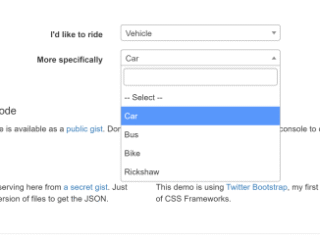
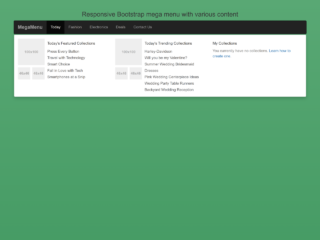
This tutorial will guide you through creating a responsive multi-level dropdown menu using Bootstrap 5. This menu will be adaptable to different screen sizes and will feature multiple levels of nested dropdowns, enhancing user experience and navigation on your website.
Step 1: Include Necessary Assets
First, add these links within the <head> of your HTML document to include Bootstrap, Material Design Icons, Google Fonts, and Font Awesome:
<link rel='stylesheet' href='https://cdn.jsdelivr.net/npm/bootstrap@5.3.0/dist/css/bootstrap.min.css'> <link rel='stylesheet' href='https://cdnjs.cloudflare.com/ajax/libs/material-design-iconic-font/2.2.0/css/material-design-iconic-font.min.css'> <link rel='stylesheet' href='https://fonts.googleapis.com/css2?family=Poppins:wght@400;700&display=swap'> <link rel='stylesheet' href='https://cdnjs.cloudflare.com/ajax/libs/font-awesome/5.11.2/css/all.min.css'>
Step 2: Create the HTML Structure
Next, create the HTML structure for your navigation bar. This includes the main navigation links and the multi-level dropdown menus. The code utilizes Bootstrap classes for styling and functionality.
<!--
(c) 2020-2025 by Simon Köhler
simonkoehler.com
Last Update: August 13 2023 11:48 am, Panama
-->
<nav class="navbar navbar-expand-lg shadow">
<div class="container-fluid">
<a class="navbar-brand" href="#">Bootstrap <span class="badge bg-primary fw-bold">version 5.3.0</span></a>
<button class="navbar-toggler collapsed" type="button" data-bs-toggle="collapse" data-bs-target="#navbar-content">
<div class="hamburger-toggle">
<div class="hamburger">
<span></span>
<span></span>
<span></span>
</div>
</div>
</button>
<div class="collapse navbar-collapse" id="navbar-content">
<ul class="navbar-nav mr-auto mb-2 mb-lg-0">
<li class="nav-item">
<a class="nav-link active" aria-current="page" href="#">Home</a>
</li>
<li class="nav-item dropdown">
<a class="nav-link dropdown-toggle" href="#" data-bs-toggle="dropdown" data-bs-auto-close="outside">Multilevel</a>
<ul class="dropdown-menu shadow">
<li><a class="dropdown-item" href="#">Gallery</a></li>
<li><a class="dropdown-item" href="blog.html">Blog</a></li>
<li class="dropstart">
<a href="#" class="dropdown-item dropdown-toggle" data-bs-toggle="dropdown">Submenu Left</a>
<ul class="dropdown-menu shadow">
<li><a class="dropdown-item" href=""> Third level 1</a></li>
<li><a class="dropdown-item" href=""> Third level 2</a></li>
<li><a class="dropdown-item" href=""> Third level 3</a></li>
<li><a class="dropdown-item" href=""> Third level 4</a></li>
<li><a class="dropdown-item" href=""> Third level 5</a></li>
</ul>
</li>
<li class="dropend">
<a href="#" class="dropdown-item dropdown-toggle" data-bs-toggle="dropdown" data-bs-auto-close="outside">Submenu Right</a>
<ul class="dropdown-menu shadow">
<li><a class="dropdown-item" href=""> Second level 1</a></li>
<li><a class="dropdown-item" href=""> Second level 2</a></li>
<li><a class="dropdown-item" href=""> Second level 3</a></li>
<li class="dropend">
<a href="#" class="dropdown-item dropdown-toggle" data-bs-toggle="dropdown" data-bs-auto-close="outside">Let's go deeper!</a>
<ul class="dropdown-menu dropdown-submenu shadow">
<li><a class="dropdown-item" href=""> Third level 1</a></li>
<li><a class="dropdown-item" href=""> Third level 2</a></li>
<li><a class="dropdown-item" href=""> Third level 3</a></li>
<li><a class="dropdown-item" href=""> Third level 4</a></li>
<li class="dropend">
<a href="#" class="dropdown-item dropdown-toggle" data-bs-toggle="dropdown">Still don't have enough? Go much deeper!</a>
<ul class="dropdown-menu dropdown-submenu shadow">
<li><a class="dropdown-item" href=""> Third level 1</a></li>
<li><a class="dropdown-item" href=""> Third level 2</a></li>
<li><a class="dropdown-item" href=""> Third level 3</a></li>
<li><a class="dropdown-item" href=""> Third level 4</a></li>
<li><a class="dropdown-item" href=""> Third level 5</a></li>
</ul>
</li>
</ul>
</li>
<li><a class="dropdown-item" href=""> Third level 5</a></li>
</ul>
</li>
<li><hr class="dropdown-divider"></li>
<li><a class="dropdown-item" href="#">Something else here</a></li>
</ul>
</li>
<li class="nav-item">
<a class="nav-link" href="#">Link</a>
</li>
<li class="nav-item dropdown dropdown-mega position-static">
<a class="nav-link dropdown-toggle" href="#" data-bs-toggle="dropdown" data-bs-auto-close="outside">Megamenu</a>
<div class="dropdown-menu shadow">
<div class="mega-content px-4">
<div class="container-fluid">
<div class="row">
<div class="col-12 col-sm-4 col-md-3 py-4">
<h5>Pages</h5>
<div class="list-group">
<a class="list-group-item" href="#">Accomodations</a>
<a class="list-group-item" href="#">Terms & Conditions</a>
<a class="list-group-item" href="#">Privacy</a>
</div>
</div>
<div class="col-12 col-sm-4 col-md-3 py-4">
<h5>Card</h5>
<div class="card">
<img src="https://via.placeholder.com/320x180" class="img-fluid" alt="image">
<div class="card-body">
<p class="card-text">Some quick example text to build on the card title and make up the bulk of the card's content.</p>
</div>
</div>
</div>
<div class="col-12 col-sm-4 col-md-3 py-4">
<h5>Lot of Pages</h5>
<p>Lorem ipsum dolo sit achmet muhamed borlan de irtka.
</div>
<div class="col-12 col-sm-12 col-md-3 py-4">
<h5>Damn, so many</h5>
<div class="list-group">
<a class="list-group-item" href="#">Accomodations</a>
<a class="list-group-item" href="#">Terms & Conditions</a>
<a class="list-group-item" href="#">Privacy</a>
</div>
</div>
</div>
</div>
</div>
</div>
</li>
<li class="nav-item">
<a class="nav-link disabled" href="#" tabindex="-1" aria-disabled="true">Disabled</a>
</li>
</ul>
<ul class="navbar-nav ms-auto">
<li class="nav-item">
<a class="nav-link" href="#" tabindex="-1" data-bs-toggle-theme="true" aria-disabled="true"><i class="fa fa-adjust"></i></a>
</li>
</ul>
<form class="d-flex">
<div class="input-group">
<input class="form-control mr-2" type="search" placeholder="Search" aria-label="Search">
<button class="btn btn-primary border-0" type="submit">Search</button>
</div>
</form>
</div>
</div>
</nav>
<section class="my-5">
<div class="container">
<div class="p-4 border">
<h1>Bootstrap <span class="text-primary">5.3.0</span> Navbar Multi Level and Mega Menu</h1>
<p class="lead">This example shows a Navbar component of the Bootstrap Framework version 5 with the following features:</p>
<ul>
<li>No extra JavaSript required</li>
<li>Multi Level Menu</li>
<li>Responsive Mega Menu</li>
<li>Unlimited Levels possible!</li>
<li>Animated Hamburger Menu for Mobile Devices (with JavaScript)</li>
</ul>
<div class="alert alert-info"><strong>Updated August 13 2023:</strong> Now compatible with Bootstrap 5.3.0 and support for <strong>Dark / Light Theme added. See Navbar!</strong></div>
</div>
</div>
</section>
<footer class="bg-dark p-4 text-white text-center">
<small>© 2020-2023 Written by <a href="https://kohlercode.com/donate" target="_blank" class="link-light" title="Check my Website">Simon Köhler</a></small>
<div class="icons">
<a href="https://blog.simonkoehler.com/" target="_blank">
<i class="fa fa-globe"></i>
</a>
<a href="https://www.linkedin.com/in/koehlersimon/" target="_blank">
<i class="fab fa-linkedin"></i>
</a>
<a href="https://x.com/koehlersimon" target="_blank">
<i class="fab fa-twitter"></i>
</a>
<a href="https://www.youtube.com/channel/UC_PtQESDvj-GZNeo9LarRuA?view_as=subscriber" target="_blank">
<i class="fab fa-youtube"></i>
</a>
</div>
</footer>
Step 3: Add CSS Styles
Apply the following CSS styles to customize the appearance of your dropdown menu and hamburger menu. This section includes styling for responsiveness and animations.
* {
  font-family: "Poppins", "Roboto", Arial, sans-serif;
}

@keyframes fadeIn {
  from {
    opacity: 0;
  }
  to {
    opacity: 1;
  }
}
.dropdown-menu.show {
  -webkit-animation: fadeIn 0.3s alternate;
  /* Safari 4.0 - 8.0 */
  animation: fadeIn 0.3s alternate;
}

.nav-item.dropdown.dropdown-mega {
  position: static;
}
.nav-item.dropdown.dropdown-mega .dropdown-menu {
  width: 90%;
  top: auto;
  left: 5%;
}

.navbar-toggler {
  border: none;
  padding: 0;
  outline: none;
}
.navbar-toggler:focus {
  box-shadow: none;
}
.navbar-toggler .hamburger-toggle {
  position: relative;
  display: inline-block;
  width: 50px;
  height: 50px;
  z-index: 11;
  float: right;
}
.navbar-toggler .hamburger-toggle .hamburger {
  position: absolute;
  transform: translate(-50%, -50%) rotate(0deg);
  left: 50%;
  top: 50%;
  width: 50%;
  height: 50%;
  pointer-events: none;
}
.navbar-toggler .hamburger-toggle .hamburger span {
  width: 100%;
  height: 4px;
  position: absolute;
  background: #333;
  border-radius: 2px;
  z-index: 1;
  transition: transform 0.2s cubic-bezier(0.77, 0.2, 0.05, 1), background 0.2s cubic-bezier(0.77, 0.2, 0.05, 1), all 0.2s ease-in-out;
  left: 0px;
}
.navbar-toggler .hamburger-toggle .hamburger span:first-child {
  top: 10%;
  transform-origin: 50% 50%;
  transform: translate(0% -50%) !important;
}
.navbar-toggler .hamburger-toggle .hamburger span:nth-child(2) {
  top: 50%;
  transform: translate(0, -50%);
}
.navbar-toggler .hamburger-toggle .hamburger span:last-child {
  left: 0px;
  top: auto;
  bottom: 10%;
  transform-origin: 50% 50%;
}
.navbar-toggler .hamburger-toggle .hamburger.active span {
  position: absolute;
  margin: 0;
}
.navbar-toggler .hamburger-toggle .hamburger.active span:first-child {
  top: 45%;
  transform: rotate(45deg);
}
.navbar-toggler .hamburger-toggle .hamburger.active span:nth-child(2) {
  left: 50%;
  width: 0px;
}
.navbar-toggler .hamburger-toggle .hamburger.active span:last-child {
  top: 45%;
  transform: rotate(-45deg);
}

.icons {
  display: inline-flex;
  margin-left: auto;
}
.icons a {
  transition: all 0.2s ease-in-out;
  padding: 0.2rem 0.4rem;
  color: #ccc !important;
  text-decoration: none;
}
.icons a:hover {
  color: white;
  text-shadow: 0 0 30px white;
}
Step 4: Include JavaScript
Before closing the <body> tag, add this script to enable Bootstrap’s JavaScript functionality. This is crucial for the dropdown menus and other interactive elements.
<script src='https://cdn.jsdelivr.net/npm/bootstrap@5.2.0-beta1/dist/js/bootstrap.bundle.min.js'></script>
Step 5: Add JavaScript Functionality
This JavaScript code adds functionality for the hamburger menu animation and theme toggling. The hamburger menu provides a mobile-friendly way to access the navigation.
// (c) 2020-2023 Written by Simon Köhler in Panama
// kohlercode.com

// Wait for the DOM (Document Object Model) to be fully loaded
document.addEventListener('DOMContentLoaded', function(event) {

  // Hamburger menu
  var navbarToggler = document.querySelectorAll('.navbar-toggler')[0];
  navbarToggler.addEventListener('click', function(e) {
    e.target.children[0].classList.toggle('active');
  });

  // Select the <html> element
  var html = document.querySelectorAll('html')[0];

  // Select the first element with the attribute 'data-bs-toggle-theme'
  var themeToggle = document.querySelectorAll('*[data-bs-toggle-theme]')[0];

  // Set the default theme to 'dark' for the <html> element
  html.setAttribute('data-bs-theme', 'dark');

  // Check if a themeToggle element is found
  if (themeToggle) {
    // Add a click event listener to the themeToggle element
    themeToggle.addEventListener('click', function(event) {
      // Prevent the default behavior of the click event
      event.preventDefault();

      // Check the current theme attribute value of the <html> element
      if (html.getAttribute('data-bs-theme') === 'dark') {
        // If the current theme is 'dark', change it to 'light'
        html.setAttribute('data-bs-theme', 'light');
      } else {
        // If the current theme is not 'dark', change it back to 'dark'
        html.setAttribute('data-bs-theme', 'dark');
      }
    });
  }
});
Congratulations! You’ve successfully created a responsive multi-level dropdown menu with Bootstrap 5.