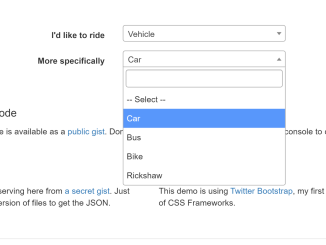
Here’s a tutorial focusing on how to create a Dynamic Cascading Dropdown Bootstrap using Select2. This approach allows you to create dependent dropdown lists where the options in one dropdown change based on the selection made in another. Let’s get started.
Add Header Assets
Include the necessary CSS libraries within the section of your HTML document. These include Bootstrap, Select CSS, and Select Bootstrap theme for styling.
<meta name="viewport" content="width=device-width, initial-scale=1"><link rel='stylesheet' href='https://maxcdn.bootstrapcdn.com/bootstrap/3.3.2/css/bootstrap.min.css'>
<link rel='stylesheet' href='https://cdnjs.cloudflare.com/ajax/libs/select2/4.0.3/css/select2.min.css'>
<link rel='stylesheet' href='https://cdnjs.cloudflare.com/ajax/libs/select2-bootstrap-css/1.4.6/select2-bootstrap.min.css'>
HTML Structure
Create the basic HTML structure, including the container, header, and the two select dropdowns (one for “type” and another for “subtype”). The “subtype” dropdown will dynamically update based on the “type” selection.
<div class="container">
<div class="header clearfix">
<h3 class="text-muted">
Select2 Cascade Demo
<small>For <a href="http://ajaxray.com/blog/select2-dependent-cascading-select-list-reload/" target="_blank">this post</a></small>
</h3>
</div>
<div class="row">
<div class="col-sm-12">
<p class="lead">Making Select2 (4.x) list boxes cascading / dependent.</p>
<p>That means, options of a select2 list box will be loaded/refreshed by ajax based on selection of another select2 list box. Let's try it -</p>
<form class="form-horizontal">
<div class="form-group">
<label for="type" class="col-sm-5 control-label">I'd like to ride</label>
<div class="col-sm-5">
<select name="type" id="type" class="form-control">
<option>--Select your ride--</option>
<option value="animals">Animal</option>
<option value="vehicles">Vehicle</option>
</select>
</div>
</div>
<div class="form-group">
<label for="subtype" class="col-sm-5 control-label">More specifically</label>
<div class="col-sm-5">
<select name="subtype" id="subtype" class="form-control">
<option>-- Select type first--</option>
</select>
</div>
</div>
</form>
</div>
</div>
<div class="row marketing">
<div class="col-lg-6">
<h4><span class="glyphicon glyphicon-cloud-download"></span> Get the code</h4>
<p>The source code is available as a <a href="https://gist.github.com/ajaxray/187e7c9a00666a7ffff52a8a69b8bf31" target="_blank">public gist</a>. Don't forget to <b><span class="glyphicon glyphicon-star"></span> it!</b></p>
<h4><span class="glyphicon glyphicon-thumbs-up"></span> Raw gist</h4>
<p>The list data is serving here from <a href="https://gist.github.com/ajaxray/32c5a57fafc3f6bc4c430153d66a55f5" target="_blank">a secret gist</a>. Just using the raw version of files to get the JSON.</p>
</div>
<div class="col-lg-6">
<h4><span class="glyphicon glyphicon-eye-open"></span> Behind the scene</h4>
<p>You may keep an eye on browser console to check the requests and response data.</p>
<h4><span class="glyphicon glyphicon-ok"></span> Twitter Bootstrap</h4>
<p>This demo is using <a href="https://getbootstrap.com/" target="_blank"> Twitter Bootstrap</a>, my first choice of CSS Frameworks.</p>
</div>
</div>
<footer class="footer">
<p>© 2017 <a href="http://ajaxray.com" target="_blank">ajaxray.com</a>.</p>
</footer>
</div> <!-- /container -->
Styling with CSS
Enhance the visual appeal and layout using the following CSS styles. This will ensure the elements are displayed correctly and consistently.
/* Space out content a bit */
body {
  padding-top: 20px;
  padding-bottom: 20px;
}

/* Everything but the jumbotron gets side spacing for mobile first views */
.header,
.marketing,
.footer {
  padding-right: 15px;
  padding-left: 15px;
}

/* Custom page header */
.header {
  padding-bottom: 20px;
  border-bottom: 1px solid #e5e5e5;
}
/* Make the masthead heading the same height as the navigation */
.header h3 {
  margin-top: 0;
  margin-bottom: 0;
  line-height: 40px;
}

/* Custom page footer */
.footer {
  padding-top: 19px;
  color: #777;
  border-top: 1px solid #e5e5e5;
}

/* Customize container */
@media (min-width: 768px) {
  .container {
    max-width: 730px;
  }
}
.container-narrow > hr {
  margin: 30px 0;
}

/* Supporting marketing content */
.marketing {
  margin: 40px 0;
}
.marketing p + h4 {
  margin-top: 28px;
}

/* Responsive: Portrait tablets and up */
@media screen and (min-width: 768px) {
  /* Remove the padding we set earlier */
  .header,
  .marketing,
  .footer {
    padding-right: 0;
    padding-left: 0;
  }
  /* Space out the masthead */
  .header {
    margin-bottom: 30px;
  }
  /* Remove the bottom border on the jumbotron for visual effect */
  .jumbotron {
    border-bottom: 0;
  }
}
JavaScript Functionality
Implement the JavaScript code using jQuery and Select2. This script listens for changes in the “type” dropdown, fetches the appropriate data, and updates the options in the “subtype” dropdown accordingly.
var Select2Cascade = ( function(window, $) {

    function Select2Cascade(parent, child, url, select2Options) {
        var afterActions = [];
        var options = select2Options || {};

        // Register functions to be called after cascading data loading done
        this.then = function(callback) {
            afterActions.push(callback);
            return this;
        };

        parent.select2(select2Options).on("change", function (e) {

            child.prop("disabled", true);

            var _this = this;
            $.getJSON(url.replace(':parentId:', $(this).val()), function(items) {
                var newOptions = '<option value="">-- Select --</option>';
                for(var id in items) {
                    newOptions += '<option value="'+ id +'">'+ items[id] +'</option>';
                }

                child.select2('destroy').html(newOptions).prop("disabled", false)
                    .select2(options);

                afterActions.forEach(function (callback) {
                    callback(parent, child, items);
                });
            });
        });
    }

    return Select2Cascade;

})( window, $);

$(document).ready(function() {
    var select2Options = { width: 'resolve' };
    // Loading raw JSON files of a secret gist - https://gist.github.com/ajaxray/32c5a57fafc3f6bc4c430153d66a55f5
    var apiUrl =  'https://gist.githubusercontent.com/ajaxray/32c5a57fafc3f6bc4c430153d66a55f5/raw/260a653e6347fb6d2360e8ec376a2dc4888c1afa/:parentId:.json';

    $('select').select2(select2Options);
    var cascadLoading = new Select2Cascade($('#type'), $('#subtype'), apiUrl, select2Options);
    cascadLoading.then( function(parent, child, items) {
        // Dump response data
        console.log(items);
    });
});
That’s all! You should now have a functioning dynamic cascading dropdown implemented using Bootstrap and Select2.