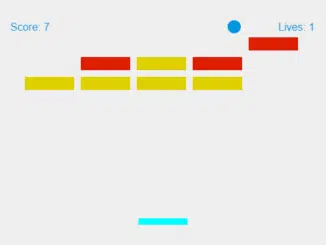
Here’s a guide to building a classic Breakout game using only vanilla JavaScript. This simple yet engaging project is perfect for honing your JavaScript skills and understanding game development fundamentals, offering a fun and interactive way to learn about canvas manipulation, event handling, and game logic. Let’s get started!
Setting Up the Project
First, we need to create the basic HTML structure and include the necessary CSS and JavaScript files. This involves setting up the canvas element where the game will be rendered and linking the required libraries.
Adding Header Assets
Add the following CDN links to your HTML document’s <head> section. These assets provide basic styling and jQuery library for convenience. The styling part is optional, but can speed up the styling.
<link rel='stylesheet' href='https://cdnjs.cloudflare.com/ajax/libs/twitter-bootstrap/3.3.7/css/bootstrap.min.css'>
Creating the HTML Structure
The core of our game interface resides within the HTML structure. This involves creating a canvas element for drawing the game, an autoplay toggle, and a message to indicate game pause.
<canvas id="myCanvas" width="480" height="320"></canvas>
<div class="autoplay-toggle">
  <input id="autoplay" type="checkbox" name="autoplay" value="Autoplay"> Enable Autoplay?<br>
</div>
<p><strong>Press 'Esc' to pause the game</strong></p>
    <script src='https://cdnjs.cloudflare.com/ajax/libs/jquery/3.2.1/jquery.min.js'></script><script  src="./script.js"></script>
Styling the Game
Next, we need to style our game elements. The CSS styles are important for the visual appearance of the game, including the canvas, messages, and other elements.
* {
    margin: 0;
    padding: 0;
}

canvas {
    background-color: #eee;
    display: block;
    margin: 20px auto;
}
#lose-message {
    font-size: 2em;
    text-align: center;
    margin: 10px;
    color: red;
    font-weight: bold;
    font-family: sans-serif;
    display: none;
}

.autoplay-toggle {
    display: inline-block;
    position: relative;
    left: 50%;
    margin-top: 10px;
    transform: translate(-50%, 0);
}

p {
  text-align: center;
}
Implementing Game Logic with JavaScript
This is where the magic happens! The JavaScript code handles all the game logic, including drawing the ball, paddle, and bricks, handling collisions, and updating the score and lives.
Defining Variables
We’ll start by defining all the necessary variables, such as canvas elements, game state, ball properties, paddle properties, and brick properties.
Implementing Drawing Functions
These functions are responsible for drawing the game elements on the canvas. We’ll have functions for drawing the ball, paddle, bricks, score, and lives.
Adding Event Listeners
Event listeners are crucial for handling user input. We’ll add listeners for key presses (to move the paddle) and mouse movement (for alternative paddle control).
Implementing Collision Detection
This function detects collisions between the ball and the bricks, updating the game state accordingly.
Adding Autoplay Functionality
This function enables the user to toggle autoplay functionality.
// Canvas related variables
var canvas = document.getElementById('myCanvas');
var ctx = canvas.getContext('2d');

// Game related variables
var lives = 3;
var gameOver = false;
var paused = false;
var score = 0;
var autoplayToggle = document.getElementById("autoplay");
autoplayToggle.checked = false;

// Ball relates variables
var x = canvas.width / 2;
var y = canvas.height - 30;
var dx = 1.5;
var dy = -1.5;
var ballRadius = 10;
var maxSpeed = 3.5;
var speedMultiplier = 1;

// Paddle related variables
var paddleHeight = 10;
var paddleWidth = 75;
var paddleX = (canvas.width - paddleWidth) / 2;
var paddleY = canvas.height - (paddleHeight + 5);
var rightPressed = false;
var leftPressed = false;
var paddleSpeed = 7;

// Brick related variables
var brickRowCount = 3;
var brickColumnCount = 5;
var brickWidth = 75;
var brickHeight = 20;
var brickPadding = 10;
var brickOffsetTop = 30;
var brickOffsetLeft = 30;
var bricks = [];
for (c = 0; c < brickColumnCount; c++) {
    bricks[c] = [];
    for (r = 0; r < brickRowCount; r++) {
        bricks[c][r] = {
            x: 0,
            y: 0,
            status: 2
        };
    }
}

function draw() {
    if (!paused) {
        ctx.clearRect(0, 0, canvas.width, canvas.height);

        if (autoplayToggle.checked) {
            autoPlay();
        }
        drawPaddle();
        drawBricks();
        drawBall();
        collisionDetection();
        drawScore();
        drawLives();

        x += dx;
        y += dy;
    }
    if (x + dx > (canvas.width - ballRadius) || x + dx < ballRadius) {
        dx = -dx;
    }
    if (y + dy < ballRadius) {
        dy = -dy;
    } else if (y + dy > (canvas.height - (2 * ballRadius))) {

        if (x > paddleX && x < paddleX + paddleWidth) {
            dy = -dy;
            if (Math.abs(dx) < maxSpeed && Math.abs(dy) < maxSpeed) {
                dx *= speedMultiplier;
                dy *= speedMultiplier;

                console.log(dx);
            }
        } else {
            lives--;
            if (!lives) {
                alert("GAME OVER");
                document.location.reload();
            } else {
                x = canvas.width / 2;
                y = canvas.height - 30;
                dx = 2;
                dy = -2;
                paddleX = (canvas.width - paddleWidth) / 2;
            }

        }

    }

    if (lives <= 0) {
        loseMessage.style.display = "block";
    }

    requestAnimationFrame(draw);
}

function drawBall() {
    ctx.beginPath();
    ctx.arc(x, y, ballRadius, 0, Math.PI * 2);
    ctx.fillStyle = '#0095DD';
    ctx.fill();
    ctx.closePath();


}

function drawPaddle() {
    ctx.beginPath();
    ctx.rect(paddleX, paddleY, paddleWidth, paddleHeight);
    ctx.fillStyle = "#00FFFF";
    ctx.fill();
    ctx.closePath();

    if (rightPressed) {
        if (paddleX + paddleSpeed < canvas.width - paddleWidth) {
            paddleX += paddleSpeed;
        }
    } else if (leftPressed) {
        if (paddleX - paddleSpeed > 0) {
            paddleX -= paddleSpeed;
        }
    }
}

function autoPlay() {
    var newX = x - (paddleWidth / 2);

    if (newX >= 0 && newX <= canvas.width - paddleWidth) {
        paddleX = newX;
    }
}

function drawBricks() {
    for (c = 0; c < brickColumnCount; c++) {
        for (r = 0; r < brickRowCount; r++) {
            if (bricks[c][r].status > 0) {
                var brickX = (c * (brickWidth + brickPadding)) + brickOffsetLeft;
                var brickY = (r * (brickHeight + brickPadding)) + brickOffsetTop;
                bricks[c][r].x = brickX;
                bricks[c][r].y = brickY;
                ctx.beginPath();
                ctx.rect(brickX, brickY, brickWidth, brickHeight);
                ctx.fillStyle = bricks[c][r].status == 2 ? "#ddd000" : "#dd1e00";
                ctx.fill();
                ctx.closePath();
            }
        }
    }
}

function collisionDetection() {
    for (c = 0; c < brickColumnCount; c++) {
        for (r = 0; r < brickRowCount; r++) {
            var b = bricks[c][r];
            if (b.status != 0) {
                if (x > b.x && x < b.x + brickWidth && y - ballRadius > b.y && y - ballRadius < b.y + brickHeight) {
                    dy = -dy;
                    b.status--;

                    if (b.status == 0) {
                        dy = -dy;
                        score++;

                        if (score == brickRowCount * brickColumnCount) {
                            alert("YOU WIN, CONGRATULATIONS!");
                            document.location.reload();
                        }
                    }
                }
            }
        }
    }
}

function drawScore() {
    ctx.font = "16px Arial";
    ctx.fillStyle = "#0095DD";
    ctx.fillText("Score: " + score, 8, 20);
}

function drawLives() {
    ctx.font = "16px Arial";
    ctx.fillStyle = "#0095DD";
    ctx.fillText("Lives: " + lives, canvas.width - 65, 20);
}

function keyDownHandler(e) {
    if (e.keyCode == 39 || e.keyCode == 68) {
        rightPressed = true;
    } else if (e.keyCode == 37 || e.keyCode == 65) {
        leftPressed = true;
    }
}

function keyUpHandler(e) {
    if (e.keyCode == 39 || e.keyCode == 68) {
        rightPressed = false;
    } else if (e.keyCode == 37 || e.keyCode == 65) {
        leftPressed = false;
    }
}

function pauseKeyPress(e) {
    if (e.keyCode == 27) {
        paused = !paused;
        console.log(paused);
    }
}

function mouseMoveHandler(e) {
    var relativeX = e.clientX - canvas.offsetLeft;
    if (relativeX > 0 && relativeX < canvas.width) {
        var newPaddleX = relativeX - paddleWidth / 2;

        if (newPaddleX >= 0 && newPaddleX + paddleWidth <= canvas.width) {
            paddleX = newPaddleX;
        }
    }
}

document.addEventListener("keydown", keyDownHandler, false);
document.addEventListener("keyup", keyUpHandler, false);
document.addEventListener("keyup", pauseKeyPress, false);
document.addEventListener("mousemove", mouseMoveHandler, false);
//setInterval(draw, 10);
draw();
Adding Footer Assets
Optionally add Javascript files just before the closing of the <body> tag.
Congratulations! You have successfully created a Breakout Game With Vanilla Javascript. If you have any questions or suggestions, feel free to ask.