

Creating keyboard shortcuts in JavaScript can greatly enhance user experience by providing quick access to frequently used functions. This tutorial will guide you through the process of implementing such shortcuts in your web applications, allowing users to trigger actions with specific key combinations. This can make your applications more efficient and intuitive.
Setting Up the HTML Structure
The first step is to create the basic HTML structure that will hold the elements we’ll be interacting with. This includes containers for displaying messages when a shortcut is activated or not.
<div class="container">
  <div class="shortcut-not-clicked-text">
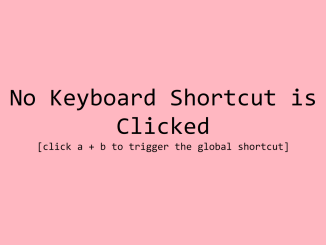
    <p>No Keyboard Shortcut is Clicked</p>
    <p class="small-text">[click a + b to trigger the global shortcut]</p>
  </div>
  <div class="shortcut-clicked-text"><p> a + b shortcut is clicked</p>
  </div>
</div>
    <script  src="./script.js"></script>
Applying CSS Styles
Next, we’ll style the HTML elements to make them visually appealing and responsive across different screen sizes. The CSS code ensures the elements are properly centered and that the display changes based on whether the shortcut is active.
/* Media Queries */

/* Small Devices*/

@media (min-width: 0px) {

* {
  box-sizing: border-box;
}


  body {
    margin: 0;
    padding: 0;
  }

  .container {
    background-color: lightpink;
    height: 100vh;
    width: 100%;
    /*targeting Chrome & Safari*/
    display: -webkit-flex;
    /*targeting IE10*/
    display: -ms-flex;
    display: flex;
    justify-content: center;
    /*vertical centering*/
    align-items: center;
    /*horizontal centering*/
    flex-direction: column;
    padding: 0 10px 0 10px;
  }

  .shortcut-not-clicked-text,
  .shortcut-clicked-text {
    font-size: 30px;
    width: 100%;
    text-align: center;
    font-family: monospace;
    /*targeting Chrome & Safari*/
    display: -webkit-flex;
    /*targeting IE10*/
    display: -ms-flex;
    display: flex;
    justify-content: center;
    /*vertical centering*/
    align-items: center;
    /*horizontal centering*/
    flex-direction: column;
    margin: 0;
    padding: 0;
  }

  .small-text {
    font-size: 20px;
  }

  .shortcut-clicked-text {
    display: none;
  }
}

/* Medium devices */

@media (min-width: 768px) {
  .shortcut-not-clicked-text,
  .shortcut-clicked-text {
    font-size: 70px;
  }

  .small-text {
    font-size: 30px;
  }
}

/* Large devices */

/* @media (min-width: 992px) {} */

/*Ipad pro view*/

/*
@media (min-width: 1024px) {

} */

/* Extra Large devices */

/* @media (min-width: 1200px) {} */
Implementing Keyboard Shortcut Logic with JavaScript
This is the core of the tutorial, where we’ll write the JavaScript code to detect key presses and trigger actions based on specific key combinations. This script listens for keydown and keyup events, tracking which keys are currently pressed.
/*Note that the use of the keyCode attribute on the key event should be
avoided as MDN considers it a deprecated attribute. Therefore, the key
attribute is used instead.*/

const shortcutNotClickedTextRef = document.getElementsByClassName(
  "shortcut-not-clicked-text"
)[0];
const shortcutClickedTextRef = document.getElementsByClassName(
  "shortcut-clicked-text"
)[0];

// Keep track of clicked keys
var isKeyPressed = {
  a: false, // ASCII code for 'a'
  b: false // ASCII code for 'b'
  // ... Other keys to check for custom key combinations
};

document.onkeydown = keyDownEvent => {
  //Prevent default key actions, if desired
  keyDownEvent.preventDefault();

  // Track down key click
  isKeyPressed[keyDownEvent.key] = true;

  // Check described custom shortcut
  if (isKeyPressed["a"] && isKeyPressed["b"]) {
    //for example we want to check if a and b are clicked at the same time
    //do something as custom shortcut (a & b) is clicked

    // show text indicating shortcut is clicked
    shortcutClickedTextRef.style.display = "flex";
    shortcutNotClickedTextRef.style.display = "none";
  }
};

document.onkeyup = keyUpEvent => {
  // Prevent default key actions, if desired
  keyUpEvent.preventDefault();

  // Track down key release
  isKeyPressed[keyUpEvent.key] = false;

  // when one of the keys is released, show text indicating
  // text is no longer clicked
  if (!isKeyPressed["a"] || !isKeyPressed["b"]) {
    shortcutClickedTextRef.style.display = "none";
    shortcutNotClickedTextRef.style.display = "flex";
  }
};
Conclusion
By following these steps, you’ve successfully implemented keyboard shortcuts in your JavaScript application. This enhances user interaction and provides a more efficient way to navigate and use your web application.


