

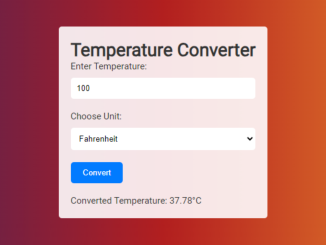
This tutorial will guide you through creating a simple temperature converter in Javascript. This is a beginner-friendly project that demonstrates basic HTML, CSS, and JavaScript concepts. By the end of this tutorial, you’ll have a functional web page that can convert temperatures between Celsius and Fahrenheit, useful for various applications, from personal projects to learning the fundamentals of web development.
Setting up the HTML Structure
First, we need to define the basic structure of our web page using HTML. This will include input fields for the temperature value, a dropdown to select the unit (Celsius or Fahrenheit), a button to trigger the conversion, and a display area for the result.
<!DOCTYPE html>
<html lang="en">
<head>
    <meta charset="UTF-8">
    <title>Temperature Converter</title>
    <link rel="stylesheet" href="style.css">
</head>
<body>
    <div class="container">
        <h1>Temperature Converter</h1>
        <div class="form-group">
            <label for="temperature">Enter Temperature:</label>
            <input type="text" id="temperature" placeholder="Enter temperature">
        </div>
        <div class="form-group">
            <label for="unit">Choose Unit:</label>
            <select id="unit">
                <option value="C">Celsius</option>
                <option value="F">Fahrenheit</option>
            </select>
        </div>
        <button id="convertBtn">Convert</button>
        <div id="result"></div>
    </div>
Styling with CSS
Next, let’s add some style to make our converter look presentable. We’ll use CSS to style the container, input fields, buttons, and the result area.
body {
    background-color: #1a1a1a;
    color: #ffffff;
    font-family: Arial, sans-serif;
}

.container {
    max-width: 400px;
    margin: auto;
    padding: 20px;
    border-radius: 5px;
    background-color: #333333;
}

.form-group {
    margin-bottom: 20px;
}

label {
    display: block;
    margin-bottom: 10px;
}

input, select {
    width: 100%;
    padding: 10px;
    border: none;
    border-radius: 5px;
}

button {
    padding: 10px 20px;
    background-color: #007bff;
    color: #ffffff;
    border: none;
    border-radius: 5px;
}

#result {
    margin-top: 20px;
}
Adding JavaScript Functionality
Now comes the most important part: the JavaScript code that will handle the temperature conversion logic. We’ll grab the input values, perform the conversion, and display the result.
// Get references to HTML elements
const temperatureInput = document.getElementById('temperature');
const unitSelect = document.getElementById('unit');
const convertBtn = document.getElementById('convertBtn');
const resultDiv = document.getElementById('result');

// Function to convert temperature
function convertTemperature() {
    const temp = parseFloat(temperatureInput.value);
    const unit = unitSelect.value;

    // Error handling
    if (isNaN(temp)) {
        resultDiv.innerHTML = 'Please enter a valid number.';
        return;
    }

    let convertedTemp;
    if (unit === 'C') {
        // Convert Celsius to Fahrenheit
        convertedTemp = (temp * 9/5) + 32;
    } else {
        // Convert Fahrenheit to Celsius
        convertedTemp = (temp - 32) * 5/9;
    }

    resultDiv.innerHTML = `Converted Temperature: ${convertedTemp.toFixed(2)}°${unit === 'C' ? 'F' : 'C'}`;
}

// Add event listener for the Convert button
convertBtn.addEventListener('click', convertTemperature);
Header Assets
Add these assets inside the <head> tag of your HTML file. These may include links to external CSS stylesheets or CDN links for JavaScript libraries, if any.
Footer Assets
Add these assets before the closing <body> tag of your HTML file. These may include links to external JavaScript files or CDN links for JavaScript libraries, if any.
That’s it! You’ve successfully built a simple temperature converter in Javascript. You can further enhance this project by adding more features, such as support for other temperature units or improving the user interface.


