

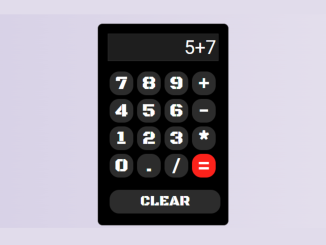
This tutorial guides you through creating a simple calculator code in HTML and JavaScript. A calculator is a fundamental application that showcases basic programming concepts such as user input, output, and arithmetic operations. By following this guide, you’ll learn how to build an interactive calculator using HTML for structure, CSS for styling, and JavaScript for functionality. This project is perfect for beginners looking to solidify their understanding of front-end web development.
Setting Up the Project
Before you start building the calculator, you’ll need to set up your project. This involves creating three essential files: an HTML file (e.g., `index.html`), a CSS file (e.g., `style.css`), and a JavaScript file (e.g., `script.js`). Make sure these files are in the same directory.
Creating the HTML Structure
The HTML structure provides the basic layout of the calculator. It includes a display screen to show input and results, buttons for numbers and operations, and a clear button to reset the calculator.
HTML Code Structure
This section details the HTML code you’ll need to structure your calculator.
<p class="m">Calculator</p>
  <br>
  <div class="calculator">
    <div class="screen">0</div>
    <br />
    <div class="buttons">
      <button>7</button>
      <button>8</button>
      <button>9</button>
      <button>+</button>
      <button>4</button>
      <button>5</button>
      <button>6</button>
      <button>-</button>
      <button>1</button>
      <button>2</button>
      <button>3</button>
      <button>*</button>
      <button>0</button>
      <button>.</button>
      <button>/</button>
      <button id="equals">=</button>
    </div>
    <br />
    <button id="clear">CLEAR</button>
  </div>
    <script  src="./script.js"></script>
Styling with CSS
CSS is used to style the calculator and make it visually appealing. This includes setting the background color, defining the layout of the buttons, and styling the display screen.
Importing Fonts
First, you need to import the necessary fonts from Google Fonts. These fonts will be used to style the text on the calculator.
CSS Styling
Next, you’ll define the CSS styles for the calculator elements.
@import url('https://fonts.googleapis.com/css2?family=Black+Ops+One&family=Borel&family=Cormorant+Upright&display=swap');
@import url('https://fonts.googleapis.com/css2?family=Lato:wght@100;200;300;400;500;700&display=swap');
@import url('https://fonts.googleapis.com/css2?family=Dancing Script&family=Source+Code+Pro');
@import url('https://fonts.googleapis.com/css2?family=Montserrat:wght@100;300;500;600;700&display=swap');
@import url('https://fonts.googleapis.com/css2?family=Creepster&display=swap');

body {
    background: rgba(0, 0, 0, 0.955);
    background-attachment: fixed;
    display: flex;
    justify-content: center;
    align-items: center;
    height: 100vh;
}

.calculator {
    background-color: rgb(0, 0, 0);
    border: solid rgb(44, 44, 44) 1px;
    padding: 20px;
    border-radius: 10px;
}

.screen {
    width: 224px;
    background-color: rgba(103, 103, 103, 0.294);
    border: solid rgb(44, 44, 44) 1px;
    font-size: 40px;
    text-align: end;
    padding: 4px;
    color: white;
}

.buttons {
    width: 232px;
    display: flex;
    flex-wrap: wrap;
}

button {
    font-family: "Black Ops One";
    background-color: rgb(44, 44, 44);
    border: none;
    color: rgb(255, 255, 255);
    font-size: 40px;
    width: 50px;
    height: 50px;
    border-radius: 20px;
    margin: 4px;
}

button:hover {
    background-color: rgb(111, 110, 110);
}

button:active {
    background-color: rgb(192, 190, 190);
    box-shadow: rgba(50, 50, 93, 0.25) 0px 30px 60px -12px inset, rgba(0, 0, 0, 0.3) 0px 18px 36px -18px inset;
}

#equals {
    background-color: rgb(252, 20, 27);
}

#equals:hover {
    background-color: rgba(198, 1, 1, 0.953);
}

#clear {
    width: 100%;
    background-color: rgb(44, 44, 44);
    font-size: 30px;
}

#clear:hover {
    background-color: rgb(255, 213, 61);
    color: black;
}

.m {
    font-family: "Black Ops One";
    margin-top: -550px;
    text-align: center;
    align-items: center;
    color: white;
    font-size: 50px;
    position: absolute;
}
Implementing Functionality with JavaScript
JavaScript is used to add functionality to the calculator. This includes handling button clicks, performing calculations, and updating the display screen.
JavaScript Code
This section provides the JavaScript code needed to make the calculator functional.
const screenDisplay = document.querySelector('.screen')
const buttons = document.querySelectorAll('button')

let calculation = []
let accumlativeCalculation


function calculate(button) {
    const value = button.textContent

    if (value == "CLEAR") {
        calculation = []
        screenDisplay.textContent = '0'
    }
    else if(value === "="){
        screenDisplay.textContent = eval(accumlativeCalculation)
    }
    else {
        calculation.push(value)
        accumlativeCalculation = calculation.join('')
        screenDisplay.textContent = accumlativeCalculation
    }

}

buttons.forEach(button => button.addEventListener('click', () => calculate(button)))
In conclusion, following this tutorial, you’ve successfully built a simple calculator code in HTML and JavaScript. This project demonstrates fundamental web development principles and provides a solid foundation for more complex applications.


