

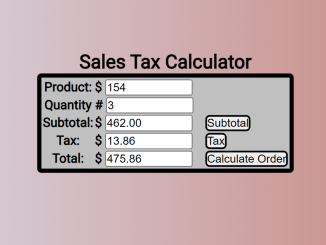
This tutorial will guide you through creating a Sales Tax Calculator Javascript application. This simple, yet practical tool, allows users to input a product’s price and quantity, then automatically calculates the subtotal, sales tax, and total amount, making it an excellent learning exercise for beginners diving into Javascript, HTML, and CSS.
Setting Up the HTML Structure
This section outlines the HTML needed for the calculator’s user interface. This structure includes input fields for the product price, quantity, and output fields to display calculated values such as subtotal, sales tax, and total. Buttons are also added to trigger the Javascript functions that perform the calculations.
<center>
<div class ="form">
<h2> Sales Tax Calculator</h5>
<form name="orderform" id="orderform">
<table>
</div>
<tr><th>
<label>Product: </label>
</th>
<th scope="row">
<div align="left">
<label><span>{{HTML_CODE}}lt;/span></label>
<input name="price" type="text" id="price" size="10">
</div>
</th>
<tr><th>
<label>Quantity</label>
</th>
<th scope="row">
<div align="left">
<label><span>#</span></label>
<input name="quantity" type="text" id="quantity" size="10">
</div>
</th>
<tr><th>
<label>Subtotal:</label>
</th>
<th scope="row">
<div align="left">
<label>{{HTML_CODE}}lt;/label>
<input name="subtotal" type="text" id="subtotal" onFocus="this.form.elements[1].focus()" size="10">
<input name="subBtn" onClick="subTotal();" type="button" id="subBtn" value="Subtotal">
</div>
</th>
</tr>
<tr><th>
<label>Tax:</label>
</th>
<th scope="row">
<div align="left">
<label>{{HTML_CODE}}lt;/label>
<input name="salestax" type="text" id="salestax" onFocus="this.form.elements[1].focus()" size="10">
<input name="taxBtn" onClick="calculateTax();" type="button" id="taxBtn" value="Tax">
</div>
</th>
</tr>
<tr><th>
<label>Total:</label>
</th>
<th scope="row">
<div align="left">
<label>{{HTML_CODE}}lt;/label>
<input name="gtotal" type="text" id="gtotal" onFocus="this.form.elements[2].focus()" size="10">
<input name="gtotalBtn" onClick="grandTotal();" type="button" id="gtotalBtn" value="Calculate Order">
</div>
</th>
</tr>
</table>
</form>
</div>
</center>
<script src="./script.js"></script>
Applying CSS Styling
Enhance the appearance of your calculator with these CSS styles. The CSS code presented defines the styles for the table, buttons, and other elements, ensuring a visually appealing user interface.
table{
  border-style: solid;
  border-color: black;
  border-width: 5px;
  border-radius: 5px;
  background-color: silver;
}
#subBtn{
  border-style: solid;
  border-color: black;
  border-width: 2px;
  border-radius: 5px;
}
#taxBtn{
  border-style: solid;
  border-color: black;
  border-width: 2px;
  border-radius: 5px;
}
#gtotalBtn{
  border-style: solid;
  border-color: black;
  border-width: 2px;
  border-radius: 5px;
}
Implementing the JavaScript Logic
This part covers the Javascript functions necessary for calculating the subtotal, sales tax, and grand total. These functions retrieve user input from the HTML form, perform the calculations, and then populate the corresponding output fields with the results.
function subTotal() {
  var price = document.orderform.price.value;
  var quantity = document.orderform.quantity.value;
  productPrice = price * quantity;
  document.orderform.subtotal.value = productPrice.toFixed(2);
  return productPrice;
}
//calculateTax() takes result of subTotal function but has to refer to the result to move forward as opposed to the previous function
//.toFixed() is the decimal points
function calculateTax() {
  //var subTotal = document.orderform.subtotal.value; OR for dryer code:
  var subtotal = subTotal();
  var stax = 0.03;
    tax = subtotal * stax;
  document.orderform.salestax.value = tax.toFixed(3);
  return tax;
}
//takes the HTML output results from the previous two functions and adds them together.
function grandTotal() {
  var subtotal = subTotal();
  var tax = calculateTax();
  document.orderform.subtotal.value = subtotal.toFixed(2);
  document.orderform.salestax.value = tax.toFixed(2);
  var gtotal = subtotal + tax;
  document.orderform.gtotal.value = gtotal.toFixed(2);
}
Adding Header Assets
This section adds CDN links for external libraries or stylesheets in the head section.
Adding Footer Assets
If any, link additional Javascript files or libraries that are loaded at the end of the body for better performance.
With the HTML structure, CSS styling, and Javascript logic in place, you should now have a fully functional Sales Tax Calculator Javascript. This project offers a hands-on approach to learning basic web development concepts and can be further expanded upon to include additional features or customized styling.


