

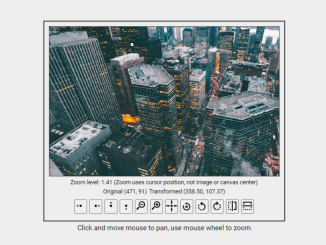
This tutorial will guide you through the process of creating a Javascript Image Viewer With Zoom Pan Rotate And Flip. This type of viewer is incredibly useful for enhancing user experience when displaying images, allowing users to explore details more closely with zoom, adjust the view with pan, and manipulate the image with rotate and flip functionalities. This can be used in various applications such as e-commerce sites for product images, map viewers, or design tools.
Setting Up the HTML Structure
First, we need to create the basic HTML structure for our image viewer. This includes the canvas element where the image will be displayed, controls for zoom, pan, rotate, and flip, and some information displays.
<main class="flex vert">
<div class="canvas-container flex">
<canvas id="canvas"></canvas>
<div class="canvas-info flex">
<div>
Zoom level: <span id="zoom-level">1</span> (Zoom uses cursor position, not image or canvas center)
</div>
<div class="flex">
<div id="mouse-pos"> </div>
<div id="transformed-mouse-pos"> </div>
</div>
</div>
<div class="canvas-controls flex">
<button id="panLeft" title="Pan left"><img class="icon" src="https://svgshare.com/i/xbd.svg#pan-left" alt="Pan left"></button>
<button id="panRight" title="Pan right"><img class="icon" src="https://svgshare.com/i/xbd.svg#pan-right" alt="Pan right"></button>
<button id="panUp" title="Pan up"><img class="icon" src="https://svgshare.com/i/xbd.svg#pan-up" alt="Pan up"></button>
<button id="panDown" title="Pan down"><img class="icon" src="https://svgshare.com/i/xbd.svg#pan-down" alt="Pan down"></button>
<button id="zoomOut" title="Zoom out"><img class="icon" src="https://svgshare.com/i/xbd.svg#zoom-out" alt="Zoom out"></button>
<button id="zoomIn" title="Zoom in"><img class="icon" src="https://svgshare.com/i/xbd.svg#zoom-in" alt="Zoom in"></button>
<button id="center" title="Center"><img class="icon" src="https://svgshare.com/i/xbd.svg#center" alt="Center"></button>
<button id="reset" title="Reset"><img class="icon" src="https://svgshare.com/i/xbd.svg#reset" alt="Reset"></button>
<button id="rotateLeft" title="Rotate left"><img class="icon" src="https://svgshare.com/i/xbd.svg#rotate-left" alt="Rotate left"></button>
<button id="rotateRight" title="Rolotate right"><img class="icon" src="https://svgshare.com/i/xbd.svg#rotate-right" alt="Rotate right"></button>
<button id="mirror" title="Mirror"><img class="icon" src="https://svgshare.com/i/xbd.svg#mirror" alt="Mirror"></button>
<button id="flip" title="Flip"><img class="icon" src="https://svgshare.com/i/xbd.svg#flip" alt="Flip"></button>
</div>
</div>
<div>Click and move mouse to pan, use mouse wheel to zoom</div>
</main>
<script src="./script.js"></script>
Applying CSS Styles
Next, we’ll add CSS to style the image viewer and make it visually appealing and user-friendly. This includes styling the canvas, control buttons, and information displays.
* {
  margin: 0;
  padding: 0;
  box-sizing: border-box;
}

body {
  width: 100%;
  height: 100%;
  padding: 10px;
}

main {
  width: calc(100vw - 20px);
  height: calc(100vh - 20px);
  padding: 10px;
  overflow: hidden;
  border: 1px solid #333;
  background: #eee;
}

.flex {
  display: flex;
  align-items: center;
  gap: 5px;
}

.vert {
  flex-direction: column;
  justify-content: center;
}

.canvas-container {
  flex-direction: column;
  border: 2px solid #333;
  padding: 10px;
}

canvas {
  border: 1px dotted #333;
  background: #777;
  cursor: crosshair;
}

.canvas-info {
  flex-direction: column;
  font-size: smaller;
}

.canvas-controls {
  padding: 5px;
}

.canvas-controls button span {
  display: inline-block;
  width: 20px;
}

.rotateR {
  transform: rotate(90deg);
}

.rotateL {
  transform: rotate(-90deg);
}

.icon {
  width: 24px;
  height: 24px;
}
Implementing JavaScript Functionality
Now comes the core part: implementing the JavaScript functionality for our image viewer. This includes loading the image, handling zoom, pan, rotate, and flip operations, and managing user interactions.
const IMGURL = "https://i.imgur.com/Z5mPZ2Y.jpg";

const ZOOMINLEVEL = 1.2;
const ZOOMOUTLEVEL = 0.8;
const MINZOOMLEVEL = 0.1;
const MAXZOOMLEVEL = 15;
const CANVASWITH = 500;
const CANVASHEIGHT = 325;
const PANSTEP = 20;
const DEFAULTCURSOR = "crosshair";
const MOUSEDOWNCURSOR = "grab";
const ZOOMINCURSOR = "zoom-in";
const ZOOMOUTCURSOR = "zoom-out";
const IMAGESMOOTHINGENABLED = false;

var currentZoomLevel = 1;
var isDragging = false;
var dragStartPosition = { x: 0, y: 0 };

var canvas,
  context,
  image,
  currentTransformedCursor,
  scaledImgWidth,
  scaledImgHeight,
  startX,
  startY,
  canvasCenterX,
  canvasCenterY,
  zoomLevelTxt,
  mousePos,
  transformedMousePos,
  scale;

window.onload = () => {
  loadImage();
  addEventListeners();
};

function loadImage() {
  canvas = document.getElementById("canvas");
  canvas.width = CANVASWITH;
  canvas.height = CANVASHEIGHT;
  context = canvas.getContext("2d");
  context.imageSmoothingEnabled = IMAGESMOOTHINGENABLED;

  zoomLevelTxt = document.getElementById("zoom-level");
  mousePos = document.getElementById("mouse-pos");
  transformedMousePos = document.getElementById("transformed-mouse-pos");

  image = new Image();

  image.onload = function () {
    init();
    reset();
  };
  image.src = IMGURL;
}

function init() {
  scale = Math.min(canvas.width / image.width, canvas.height / image.height);
  scaledImgWidth = image.width * scale;
  scaledImgHeight = image.height * scale;
  startX = (canvas.width - scaledImgWidth) / 2;
  startY = (canvas.height - scaledImgHeight) / 2;
  canvasCenterX = canvas.width / 2;
  canvasCenterY = canvas.height / 2;
  canvas.style.cursor = DEFAULTCURSOR;
  context.save();
}

function drawImageToCanvas() {
  context.save();
  context.setTransform(1, 0, 0, 1, 0, 0);
  context.clearRect(0, 0, canvas.width, canvas.height);
  context.restore();
  context.drawImage(image, startX, startY, scaledImgWidth, scaledImgHeight);
}

function getTransformedPoint(x, y) {
  const originalPoint = new DOMPoint(x, y);
  return context.getTransform().invertSelf().transformPoint(originalPoint);
}

function onMouseDown(event) {
  isDragging = true;
  canvas.style.cursor = MOUSEDOWNCURSOR;
  dragStartPosition = getTransformedPoint(event.offsetX, event.offsetY);
}

function onMouseMove(event) {
  canvas.style.cursor = DEFAULTCURSOR;
  currentTransformedCursor = getTransformedPoint(event.offsetX, event.offsetY);

  displayMousePos(event.offsetX, event.offsetY);
  event.preventDefault();

  if (isDragging) {
    pan(
      currentTransformedCursor.x - dragStartPosition.x,
      currentTransformedCursor.y - dragStartPosition.y
    );
  }
}

function onMouseUp() {
  isDragging = false;
  canvas.style.cursor = DEFAULTCURSOR;
}

function onWheel(event) {
  zoom(event.deltaY < 0 ? ZOOMINLEVEL : ZOOMOUTLEVEL);
  event.preventDefault();
}

function zoom(zoomLevel) {
  if (currentZoomLevel == MINZOOMLEVEL && zoomLevel <= 1) {
    return;
  }

  if (currentZoomLevel == MAXZOOMLEVEL && zoomLevel >= 1) {
    return;
  }

  currentZoomLevel = Math.min(
    Math.max(currentZoomLevel * zoomLevel, MINZOOMLEVEL),
    MAXZOOMLEVEL
  );
  displayZoomLevel();

  canvas.style.cursor = zoomLevel > 1 ? ZOOMINCURSOR : ZOOMOUTCURSOR;
  context.translate(currentTransformedCursor.x, currentTransformedCursor.y);
  context.scale(zoomLevel, zoomLevel);
  context.translate(-currentTransformedCursor.x, -currentTransformedCursor.y);
  drawImageToCanvas();
}

function pan(x, y) {
  context.translate(x, y);
  drawImageToCanvas();
}

function rotate(degrees) {
  context.translate(canvasCenterX, canvasCenterY);
  context.rotate((Math.PI / 180) * degrees);
  context.translate(-canvasCenterX, -canvasCenterY);
  drawImageToCanvas();
}

function mirror() {
  context.translate(canvasCenterX, canvasCenterY);
  context.scale(-1, 1);
  context.translate(-canvasCenterX, -canvasCenterY);
  drawImageToCanvas();
}

function flip() {
  context.translate(canvasCenterX, canvasCenterY);
  context.scale(1, -1);
  context.translate(-canvasCenterX, -canvasCenterY);
  drawImageToCanvas();
}

function center() {
  drawImageToCanvas(true);
}

function reset() {
  context.restore();
  context.save();
  drawImageToCanvas();
  currentZoomLevel = 1;
  displayZoomLevel();
  canvas.style.cursor = DEFAULTCURSOR;
}

function addEventListeners() {
  canvas.addEventListener("mousedown", onMouseDown);
  canvas.addEventListener("mousemove", onMouseMove);
  canvas.addEventListener("mouseup", onMouseUp);
  canvas.addEventListener("wheel", onWheel);
  document.getElementById("reset").addEventListener("click", function () {
    reset();
  });
  document.getElementById("center").addEventListener("click", function () {
    //alert("Not implemnted (yet)");
    center();
  });
  document.getElementById("zoomIn").addEventListener("click", function (event) {
    currentTransformedCursor = {
      x: canvasCenterX,
      y: canvasCenterY
    };
    zoom(ZOOMINLEVEL);
  });
  document
    .getElementById("zoomOut")
    .addEventListener("click", function (event) {
      currentTransformedCursor = {
        x: canvasCenterX,
        y: canvasCenterY
      };
      zoom(ZOOMOUTLEVEL);
    });
  document.getElementById("rotateRight").addEventListener("click", function () {
    rotate(90);
  });
  document
    .getElementById("rotateLeft")
    .addEventListener("click", function (event) {
      rotate(-90);
    });
  document.getElementById("mirror").addEventListener("click", function (event) {
    mirror();
  });
  document.getElementById("flip").addEventListener("click", function (event) {
    flip();
  });
  document
    .getElementById("panLeft")
    .addEventListener("click", function (event) {
      pan(-PANSTEP, 0);
    });
  document
    .getElementById("panRight")
    .addEventListener("click", function (event) {
      pan(PANSTEP, 0);
    });
  document.getElementById("panUp").addEventListener("click", function (event) {
    pan(0, -PANSTEP);
  });
  document
    .getElementById("panDown")
    .addEventListener("click", function (event) {
      pan(0, PANSTEP);
    });
}

function displayMousePos(x, y) {
  var transX = currentTransformedCursor.x.toFixed(2);
  var transY = currentTransformedCursor.y.toFixed(2);
  mousePos.innerText = `Original (${x}, ${y})`;
  transformedMousePos.innerText = `Transformed (${transX}, ${transY})`;
}

function displayZoomLevel() {
  zoomLevelTxt.innerText = +currentZoomLevel.toFixed(2);
}
Header Assets
Here is where you will add any necessary assets like CDN links for libraries or frameworks used in your JavaScript code. This could include libraries for math calculations, or UI enhancements, if you are using any.
Footer Assets
If your Javascript code needs to run after the DOM is loaded, or if you are referencing external JS files, here’s where you will include them. This can be helpful for managing dependencies and improving page load times.
With these steps, you’ve successfully created a Javascript Image Viewer With Zoom Pan Rotate And Flip. You can now integrate this image viewer into your web projects and customize it further to meet your specific requirements.


